Forward e-mail synchronized with Active Directory Exchange Online

Creating forwarding emails (Synchronization with Active Directory)

Connect powershell

1-)$LiveCred = Get-Credential
2-)$Session = New-PSSession -ConfigurationName Microsoft.Exchange -ConnectionUri https://ps.outlook.com/powershell/ -Credential $LiveCred -Authentication Basic -AllowRedirection
3-)Import-PSSession $Session
4-)Connect-MsolService

Command

Set-Mailbox Contato –ForwardingSmtpAddress [email protected]om –DeliverToMailboxAndForward $false


Contato = Mailbox that will receive forwarding to another email
[email protected] = E-mail address that will receive the forwarding mailbox contact

Adding secondary SMTP users to synchronize with Active Directory


Synchronized objects in Active Directory, we can not make any changes in Exchange Online.
To add a user for secondary SMTP example:

[email protected] as primary SMTP and
[email protected] as secondary SMTP

Access:

image

Then select the object:

image

Right / Properties / Attributes

Locate ProxyAddress

image

image

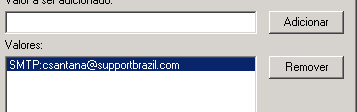
add secondary SMTP:
SMTP: [email protected]

Ok in all screens can force synchronization or wait for the normal period synchronization of Exchange Online, it also serves to distribution groups.

Adding domains to your Safe Senders List Exchange Online “JunkMail”

Connection powershell

1-) $LiveCred = Get-Credential
2-) $Session = New-PSSession -ConfigurationName Microsoft.Exchange -ConnectionUri https://ps.outlook.com/powershell/ -Credential $LiveCred -Authentication Basic -AllowRedirection
3-) Import-PSSession $Session
4-) Connect-MsolService


Get-Mailbox | Set-MailboxJunkEmailConfiguration -TrustedSendersAndDomains contoso.com, xpto.com

Deleting User deleted Exchange Online


Connection for powershell

1-) $LiveCred = Get-Credential
2-) $Session = New-PSSession -ConfigurationName Microsoft.Exchange -ConnectionUri https://ps.outlook.com/powershell/ -Credential $LiveCred -Authentication Basic -AllowRedirection
3-) Import-PSSession $Session
4-) Connect-MsolService


After

Get-MsolUser -ReturnDeletedUsers | Remove-MsolUser -RemoveFromRecycleBin -force

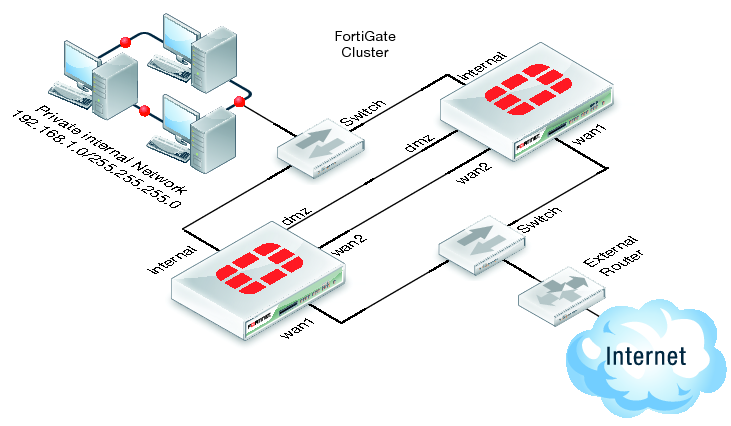
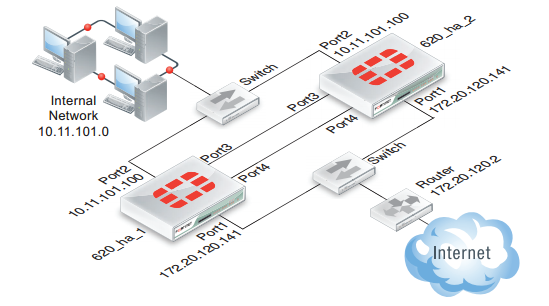
High Availability (HA) FortiGate


High availability by FortiGate

HA-FORTGATE

image


Mode:

Standalone | Active-Passive | Active-Active

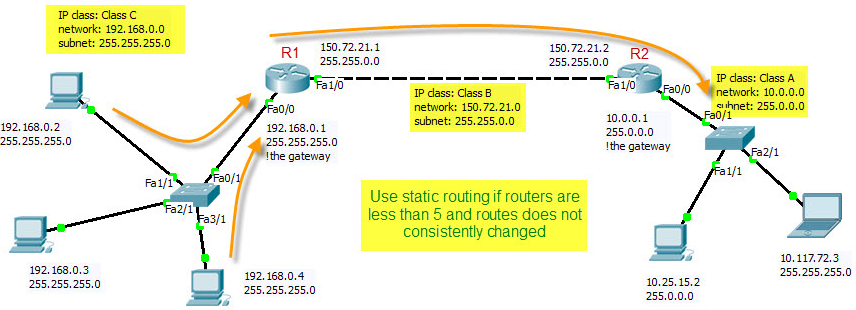
Router RIP V2

static-route--01

Simulador CISCO | Linux

Interessante para estudar.

http://www.howtoforge.com/how-to-set-up-a-cisco-lab-on-linux-centos5.2

http://www.blindhog.net/tutorials/gns3-linux-install/gns3-linux-install.html

Dica: http://blog.ccna.com.br/

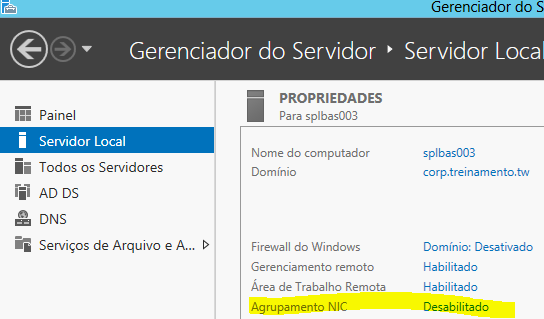
Configurando NIC Team Windows Server 2012 com Port Channel CISCO


Pelo Dashbord clique em Agrupamente de NIC
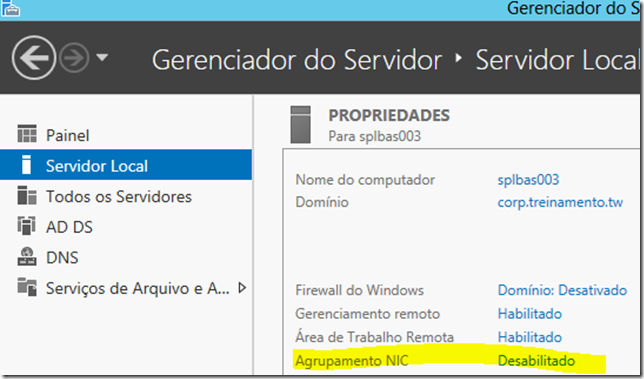
image

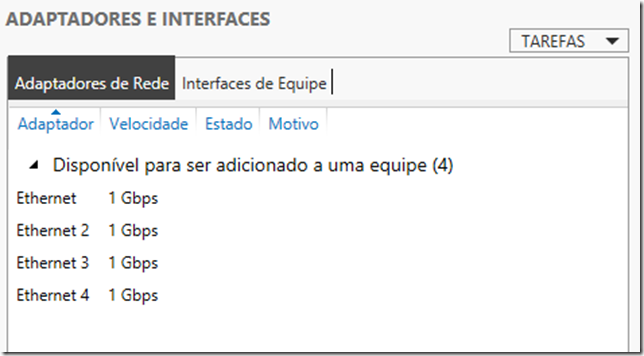
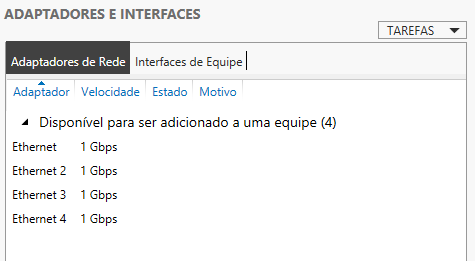
Depois em Adaptadores e Interfaces

image

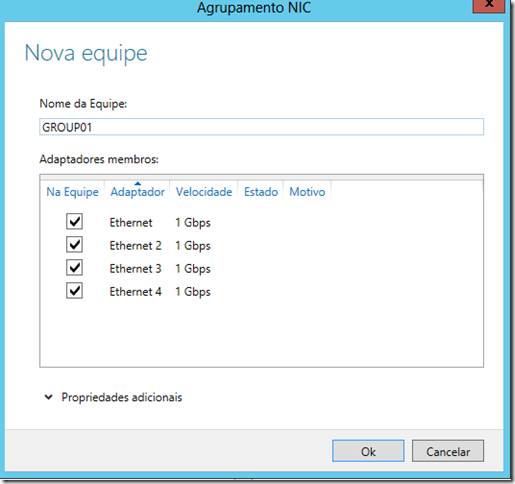
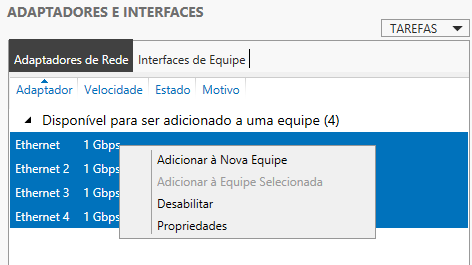
Depois, selecione as interfaces (neste caso as 4), adiconar Nova Equipe (New NIC Team)
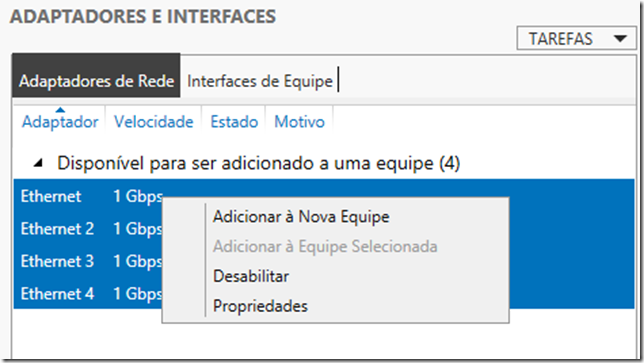
image

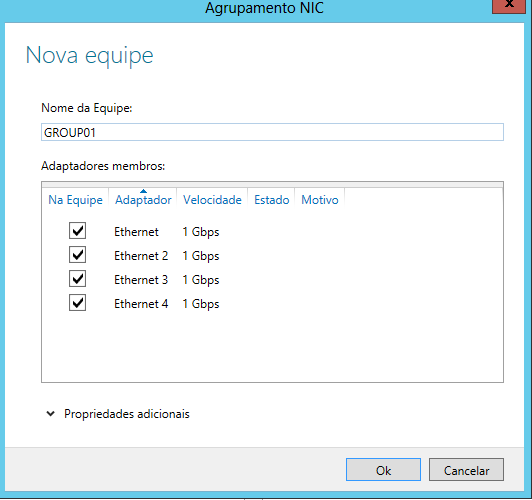
De um nome para o time

image

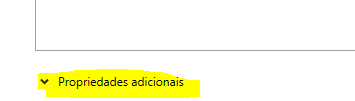
Agora em propriedades adicionais

image

Temos algumas opções

Modo de agrupamente:

Alternar independente
Agrupamento estatico
LACP

Modo de balanceamento de carga:

Hash do endereço
Porta Hiper-V

Adaptador em espera:

Nenhum (Todos ativos)
Lista de todos as placas

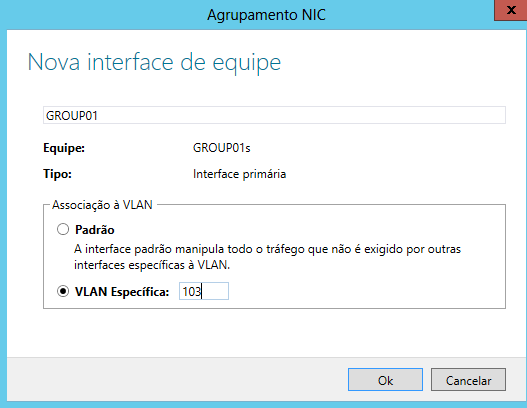
E a principal neste cenário, interface de equipe primaria (VLAN)
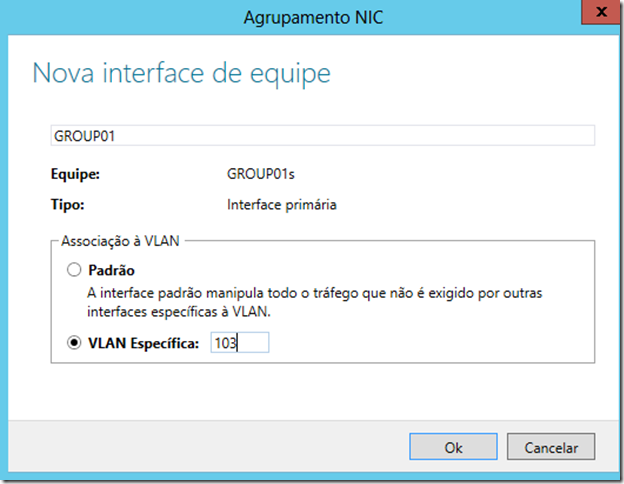
image

Neste caso marcamos a opção de utilizar Vlan especifica VLAN103

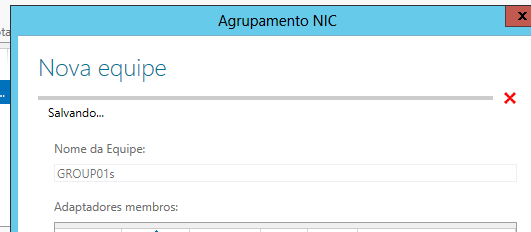
OK, em todas as telas, ele começará a salvar as configurações:
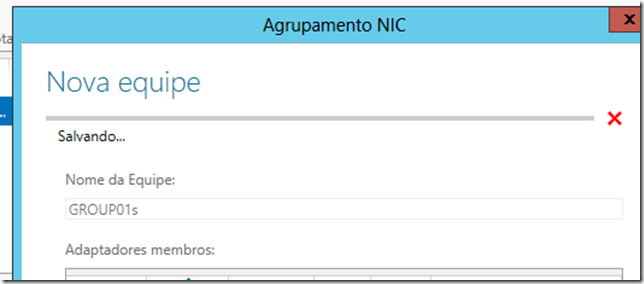
 

image

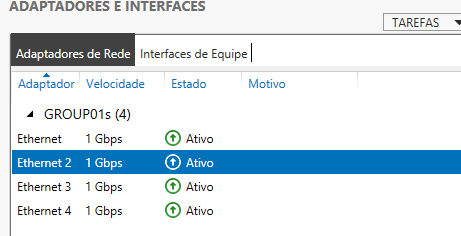
Após salvar as configurações você verá seu grupo ativo:
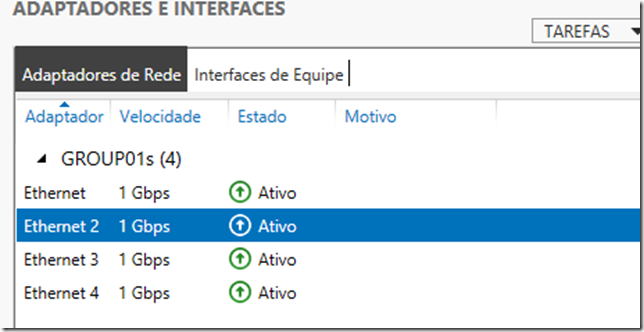
image

Agora em propriedade de REDE, vemos todas as interfaces e GRUPO que criamos:

image

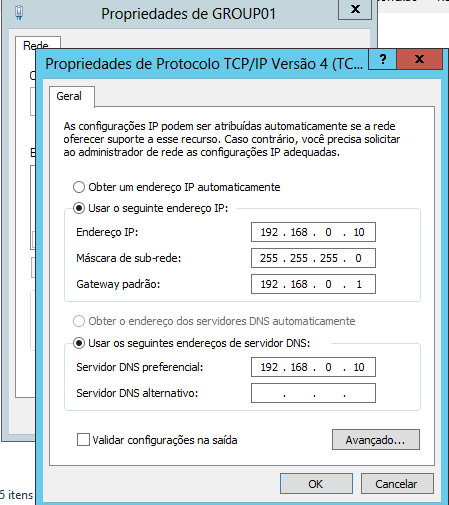
Vamos configurar o IP na placa que criamos, o processo é normal, como configurar um placa de rede comum.
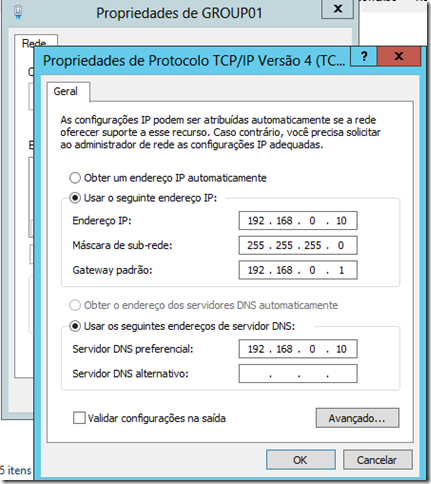
image

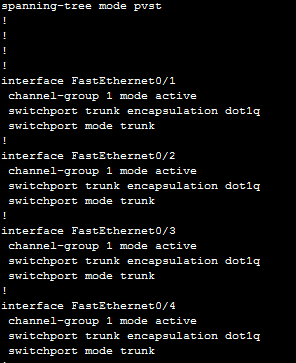
Quase pronto, agora em seu switch CISCO, vamos criar o port channel utilizando 4 portas

entre no cisco

configure terminal

interface range fast 0/1-4 (enter) desta forma selecionamos as 4 portas de uma fez só\
channel-group 1 mode active
switchport trunk encapsulation dot1q (Se for um Switch Layer 3, ex: 3750)
switchport mode trunk
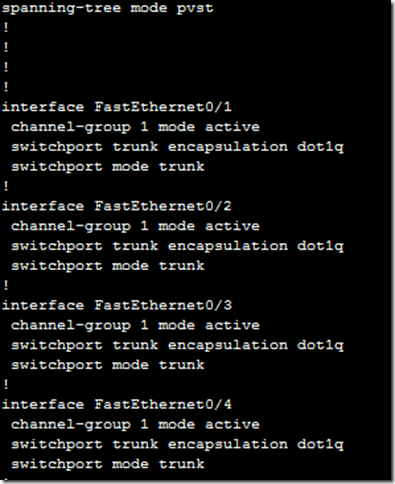
port-channel


Após feito isso, você terá uma conexão de 4 GB entre o switch e o servidor windows server 2012 (Partindo do principio que seu switch cisco é GIGA e suas placas de rede do Servidor sça GIGAS também)


Migrando AD Windows Server 2003 para Windows Server 2012

1º Elevar o nlivel funcional para 2003

2º Elevar o nivel da floresta para 2003

3º Insira o DVD do Windows Server 2008/2008 R2 (Isso mesmo não errei, pois no DVD do 2012 não existe adprep.exe32)

4º No 2003 Server, insira o DVD do 2008/2008R2

5º Abra a prompt de comando

6º Abra o DVD na pasta support

7º digite os seguintes comandos:

adprep.exe /forestprerp (enter)

adprerp.exe /domainprep (enter)

adprep.exe /rodcprerp (enter)

adprep.exe /domainprep /gpprep (enter)

8º Agora poderá adicionar como controlador de domínio adicional o Windows Server 2012

9º Após ter configurado o Windows Server 2012 como controlador de domínio adicional, vamos fazer a migração das funções:

http://support.microsoft.com/kb/255504/

Install VMWARE SERVER WINDOWS SERVER 2012 “The VMware Host Agent service depends on the following service: ProtectedStorage. This service might not be installed”

Install VMWARE SERVER WINDOWS SERVER 2012 “The VMware Host Agent service depends on the following service: ProtectedStorage. This service might not be installed”

Install Vmware server Windows server 2012

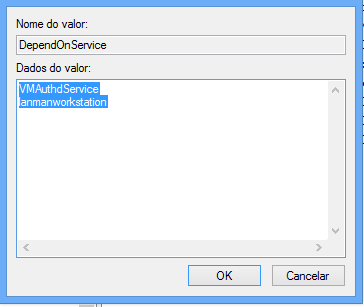
The VMware Host Agent service depends on the following service: ProtectedStorage. This service might not be installed

Edit Regedit

HKEY_LOCAL_MACHINE\SYSTEM\CurrentControlSet\Services\VMwareHostd

DependOnService

After restart