http://azure.microsoft.com/blog/2014/10/30/multiple-vm-nics-and-network-virtual-appliances-in-azure/

Specific account
Get-MSOLUser -UserPrincipalName <user ID> | Select PasswordNeverExpires
Every Organization
Get-MSOLUser | Set-MsolUser -PasswordNeverExpires $true
Connect via powershel with the account that had given read access
Get-MailboxFolder –Identity [email protected] –recuse | Add-MailboxFolderPermission –user [email protected] –AccessRights Reviewer
Now let’s remove the permission to send on behalf of
Set-Mailbox –Identity [email protected] –GrantSendOnBehalfto $null
Now add the email account in Microsoft Outlook:
File | Account Settings | Double click on account | More Settings | Advanced | Mailbox | Add | Enter the name of the Mailbox. OK an all screens.
Done.
Connect Powershell Office365
Get-ActiveSyncDevice | Export-CSV C:\csv\devices.csv
Done
Connect powershell (Office365)
Set-CASMailbox –Identity “[email protected]” –ActiveSyncEnable $false (enter)
Done
Connect powershell (Exchange Online)
Set-CasMailbox –Identity “[email protected]” –OWAEnable $False (enter)
Done
Download da ferramenta
http://www.microsoft.com/pt-br/download/details.aspx?id=30716
Instalação
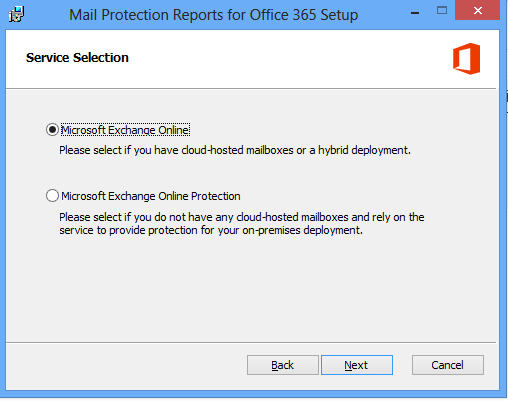
Escolha a opção que melhor atende seu ambiente
Pré-requisitos
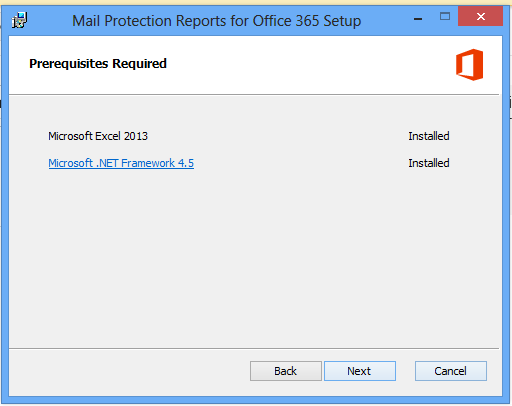
Next Install
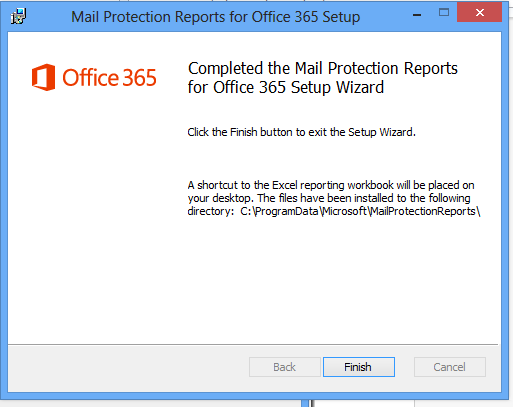
Finish
Icon “Mail Protection Report”
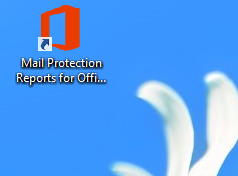
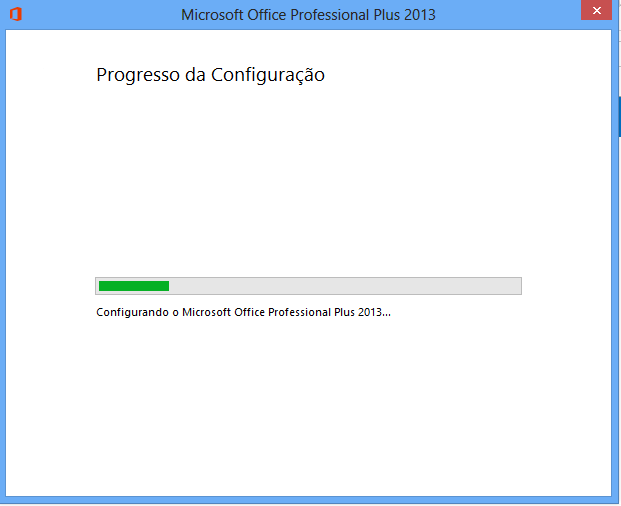
Install Plugin
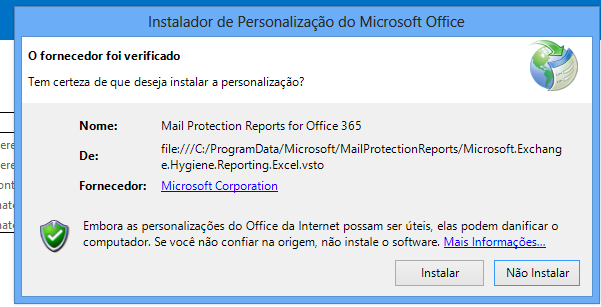
After install
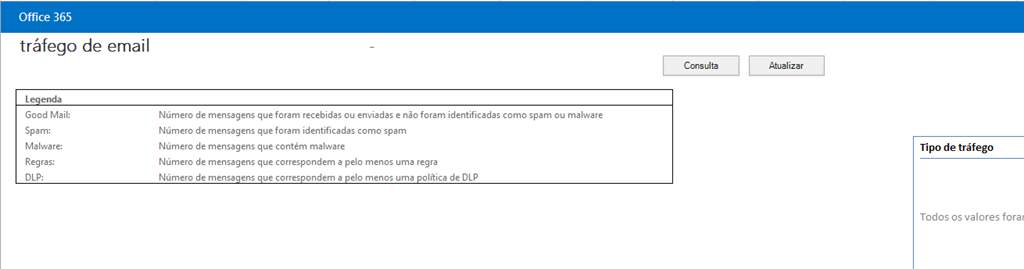
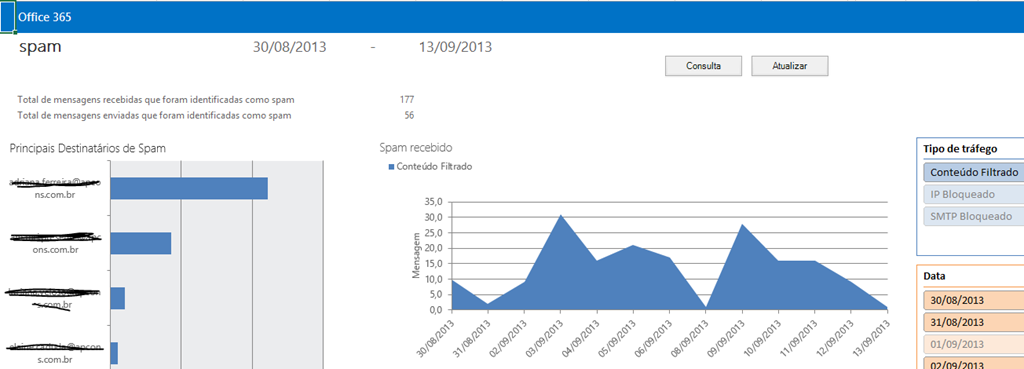
Click “Consult”
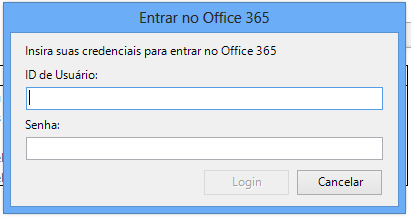
Enter user name and password office365
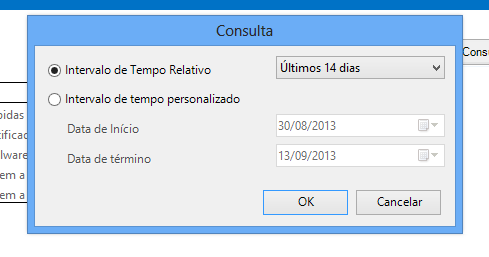
wait a few moments and choose the period
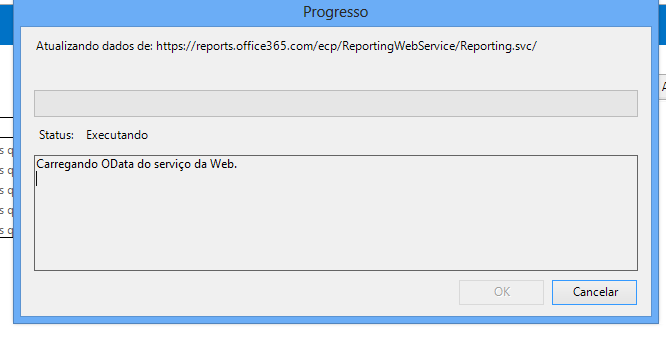
wait a few more moments
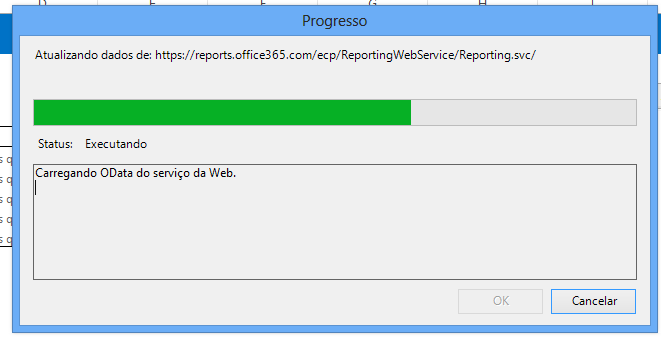
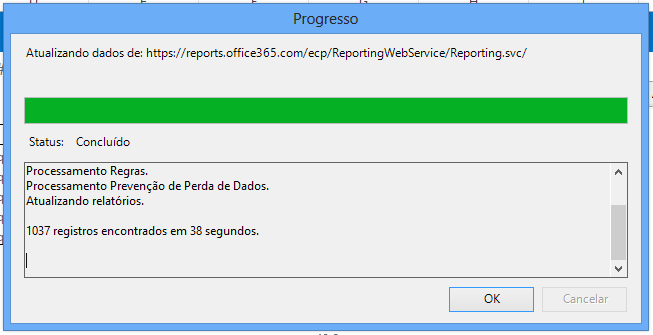
Done
Set-Mailbox Support –ForwardingSmtpAddress $null
Support = The mailbox that will no longer forwarding
Creating forwarding emails (Synchronization with Active Directory)
Connect powershell
1-)$LiveCred = Get-Credential
2-)$Session = New-PSSession -ConfigurationName Microsoft.Exchange -ConnectionUri https://ps.outlook.com/powershell/ -Credential $LiveCred -Authentication Basic -AllowRedirection
3-)Import-PSSession $Session
4-)Connect-MsolService
Command
Set-Mailbox Contato –ForwardingSmtpAddress [email protected]om –DeliverToMailboxAndForward $false
Contato = Mailbox that will receive forwarding to another email
[email protected] = E-mail address that will receive the forwarding mailbox contact
Synchronized objects in Active Directory, we can not make any changes in Exchange Online.
To add a user for secondary SMTP example:
[email protected] as primary SMTP and
[email protected] as secondary SMTP
Access:

Then select the object:

Right / Properties / Attributes
Locate ProxyAddress

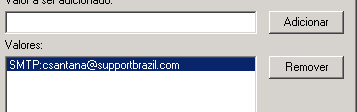
add secondary SMTP:
SMTP: [email protected]
Ok in all screens can force synchronization or wait for the normal period synchronization of Exchange Online, it also serves to distribution groups.
 Charles Aureliano Santana
Você precisa fazer login para comentar.